QR Codes for Your Links
Every link you create in Ulinkly comes with a QR code automatically — there's nothing to turn on. The code encodes your link's short URL, so a scan runs through the exact same resolution and attribution path as a tap: it deep-links into your app when installed, and falls back to the App Store, Play Store, or your website when it isn't.
That makes a QR code the bridge between your physical surfaces — packaging, posters, table tents, business cards, event badges — and the right in-app destination.
What you'll learn
- Where to find a link's QR code and open QR Studio
- How to brand the code with colors, module and eye shapes, and a caption
- Exporting as PNG, SVG, or PDF, and embedding the live image anywhere
- How scans show up separately from taps in your analytics
Opening QR Studio
Go to Dashboard → Links. Every row has a QR icon in the Actions column — click it to open QR Studio for that link.

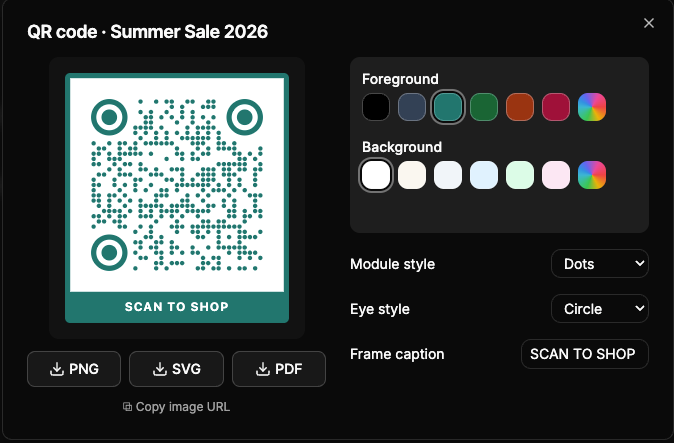
QR Studio opens with a live preview on the left and the styling controls on the right. Changes apply to the preview instantly and save to the link automatically — there's no separate "save" step.
The QR encodes the link's short URL, not the destination. That means you can print the code once and re-point the link to a new destination whenever you like — every previously printed code keeps working.
Branding the code
On the free plan, the QR renders in the default black-on-white style. Paid plans (Starter and Pro) unlock the full set of branding controls:
Foreground & Background — Pick from the preset swatches or click the rainbow chip to choose any custom hex color. Foreground is the modules; background is the quiet space behind them.
Module style — How the individual cells are drawn: Square (classic), Dots, or Rounded.
Eye style — The three corner finder patterns: Square, Rounded, or Circle.
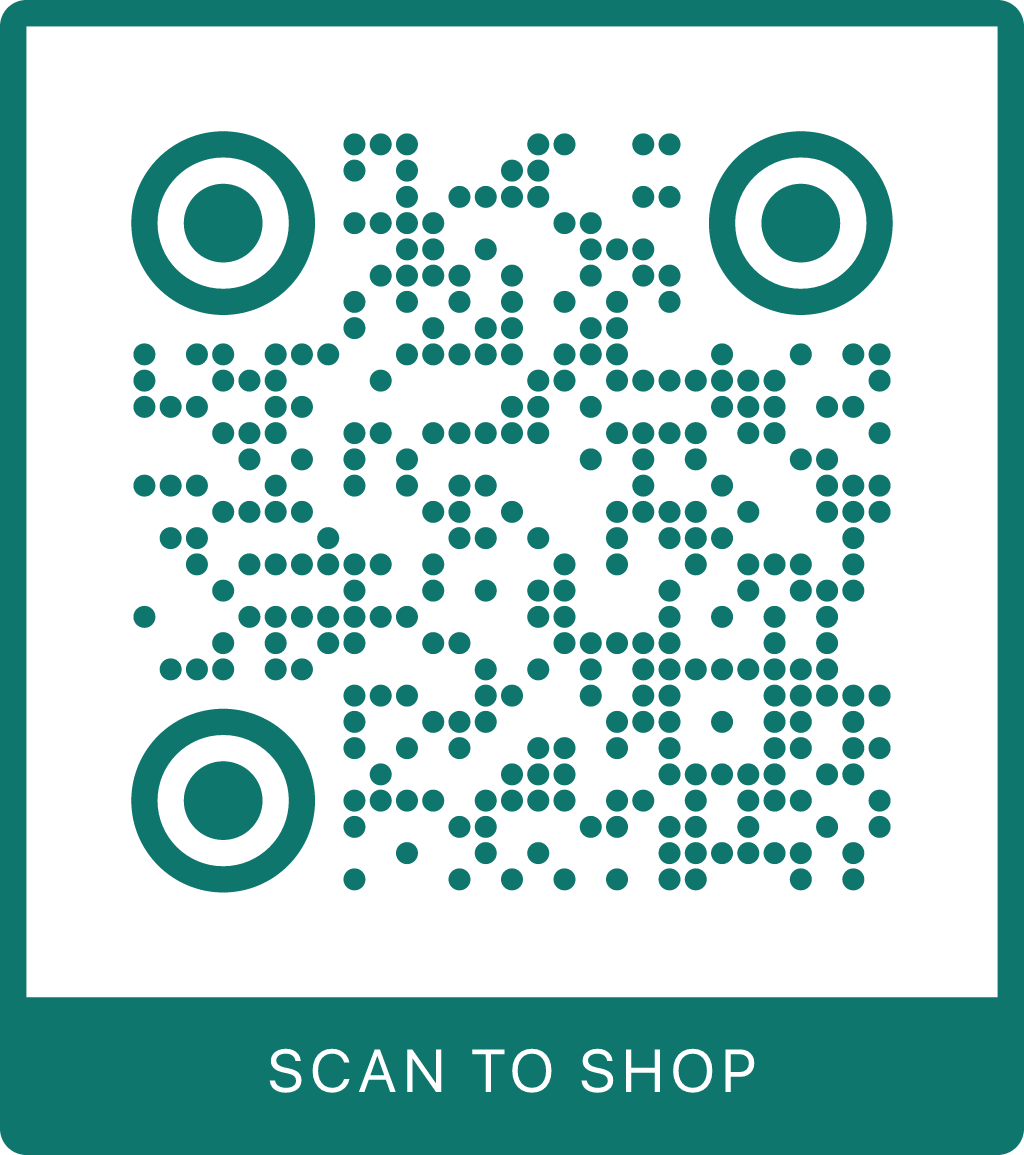
Frame caption — A short call-to-action rendered in a band under the code, like "SCAN TO SHOP" or "Scan to download." Keep it short so it stays legible.
Here's the same link as plain default, recolored, with dot modules and circle eyes, and finished with a caption:
| Default | Brand color | Custom shapes | With caption |
|---|---|---|---|
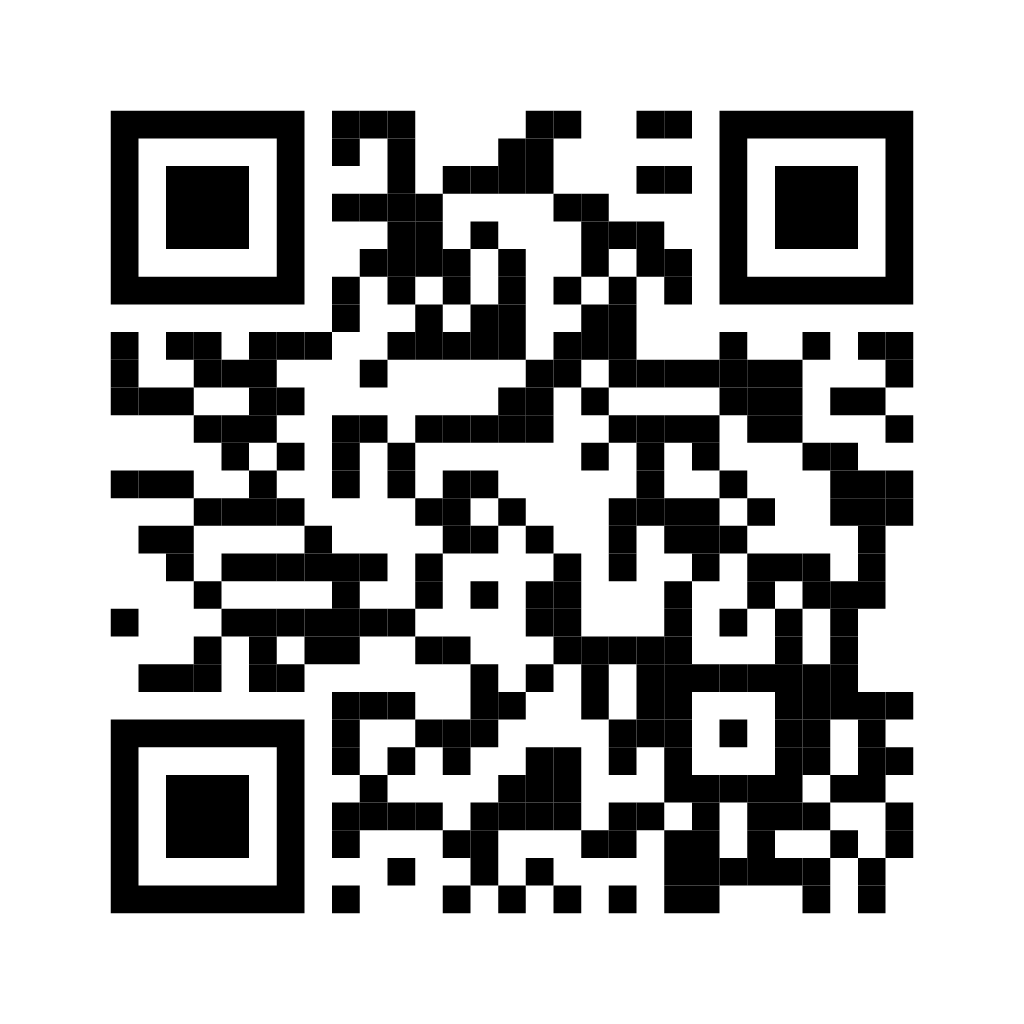 | 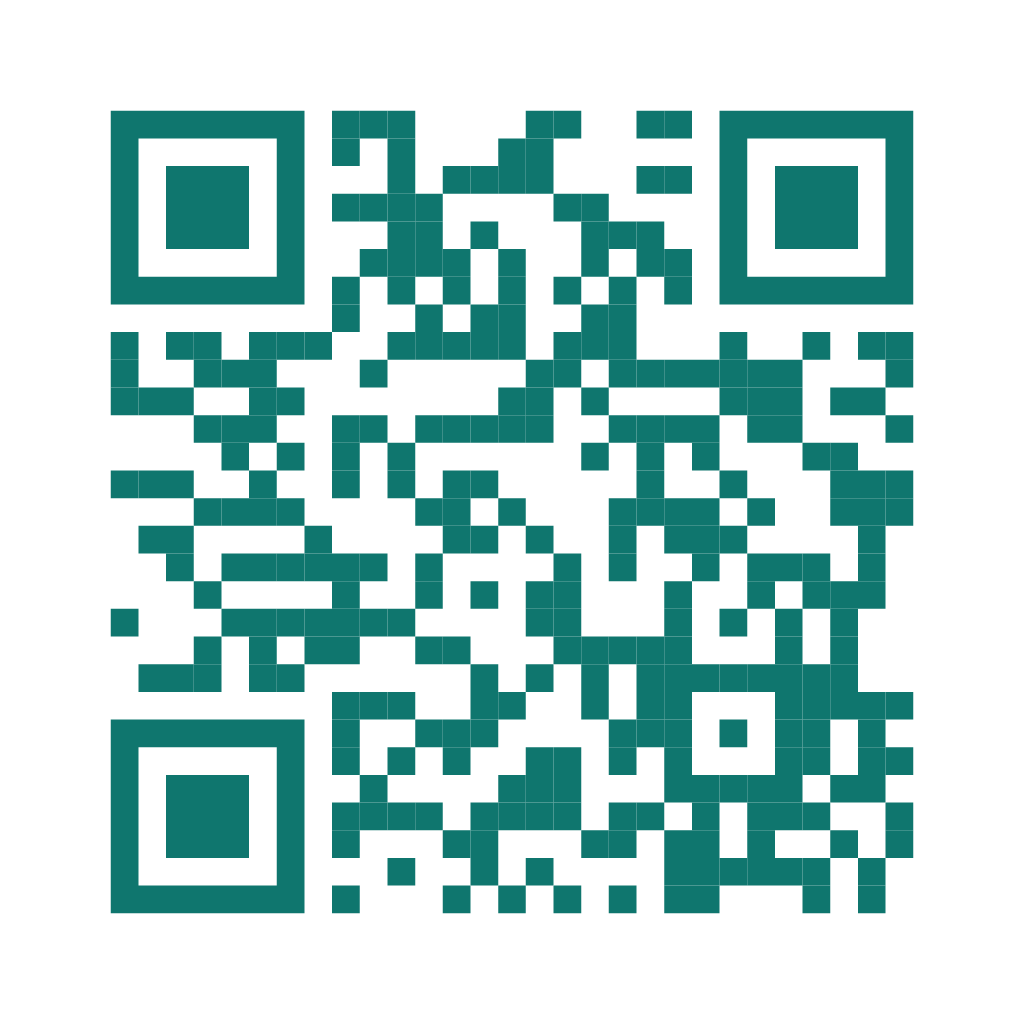 | 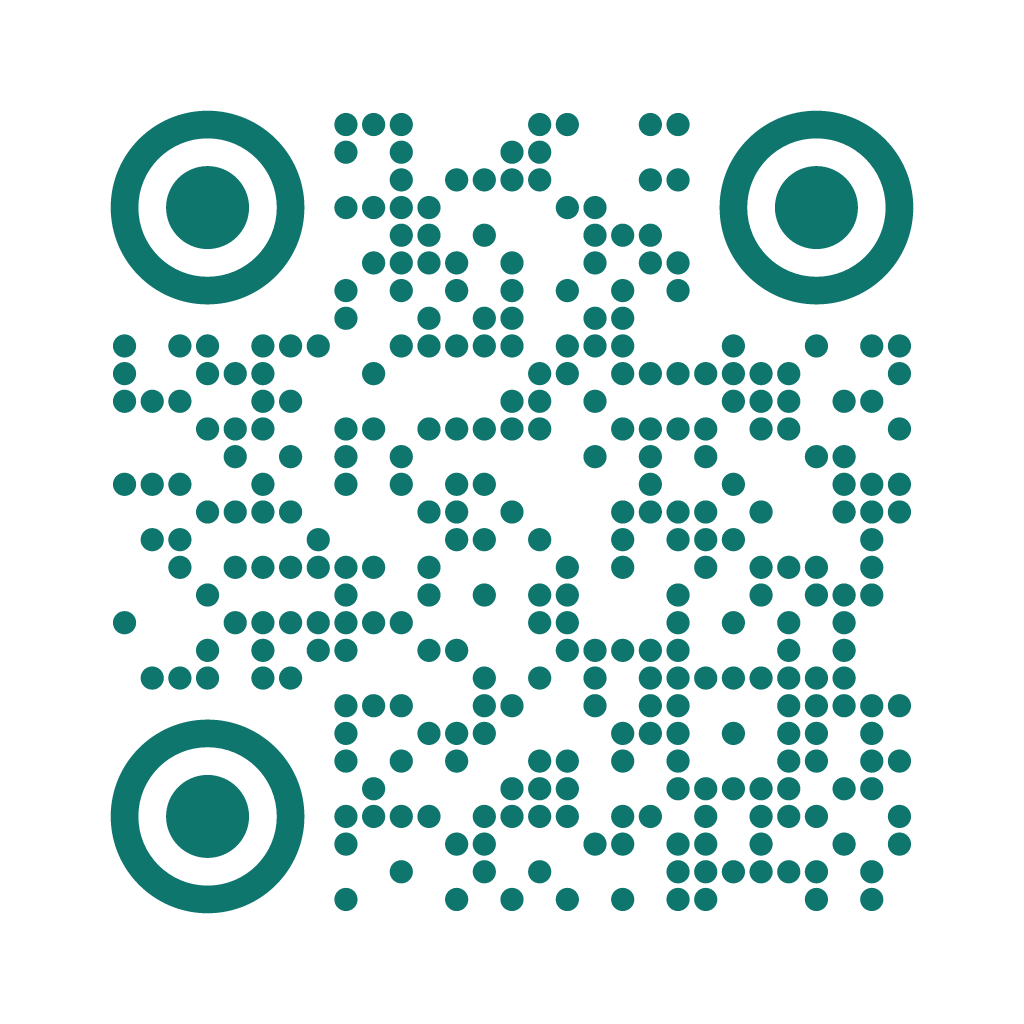 |  |
A QR code only scans reliably when there's enough contrast between the foreground and background. QR Studio shows a "Low contrast — may not scan reliably" warning if your colors are too close (or inverted, with a light foreground on a dark background). Keep the foreground darker than the background, and always test a print with a real phone before you order a thousand of them.
Exporting
Three formats are available from the buttons under the preview:
- PNG — A 1024px raster image. Best for web, email, and quick drops into a doc or slide.
- SVG — Vector. Scales to any size with no quality loss — use this for anything that gets resized, like posters, packaging, or billboards.
- PDF — A print-ready document. Paid plans only (free plans get a payment-required response here).
There's also a Copy image URL link. It copies a public, cacheable URL that renders the styled QR on demand:
<!-- Drop the live QR straight into a page or email -->
<img src="https://api.ulink.ly/api/v1/links/{linkId}/qr.png" alt="Scan to open" />
No API key or login is needed to load that image, and it always reflects the link's current style.
Telling scans apart from taps
The URL encoded in the QR carries a _qr=1 marker. Ulinkly reads it so that, in your analytics, scans are attributed to QR traffic rather than ordinary link taps — handy for measuring how a printed campaign actually performed.
Create a test link, open QR Studio, and set a brand color with a "Scan me" caption. Download the SVG, drop it into a doc, and scan it with your phone to confirm it resolves to the right place. Then change the link's destination and scan the same code again — notice it still works.
Quick recap
- Every link has a QR code automatically; it encodes the short URL, so re-pointing the link never breaks a printed code
- Open QR Studio from the QR icon in the Links table
- Paid plans unlock colors, module/eye shapes, and a caption frame; styling saves automatically per link
- Export PNG or SVG on any plan, PDF on paid plans, or embed the live image via its public URL
- Scans are tagged with
_qr=1so they show up as QR traffic in analytics — keep enough color contrast so they actually scan